Getting Started
Visit AITEZA in your preferred browser.
Prerequisites
Modern browser (Chrome, Edge, Firefox, Safari – latest version recommended)
An active AITEZA account (invited by your organization) OR eligibility to self‑register (if enabled)
Optional: Company Microsoft Account for single sign-on (SSO)
Access & Invitations
If your organization uses invitations, you will receive an email with a link. Open it within the validity period.
If self‑registration is enabled, use the "Create account" or "Register" link on the sign‑in page.
If you need access but have no invitation, contact your workspace administrator or the AITEZA support team.
Sign in
To sign in, use your email address and password or sign in with your company Microsoft Account.
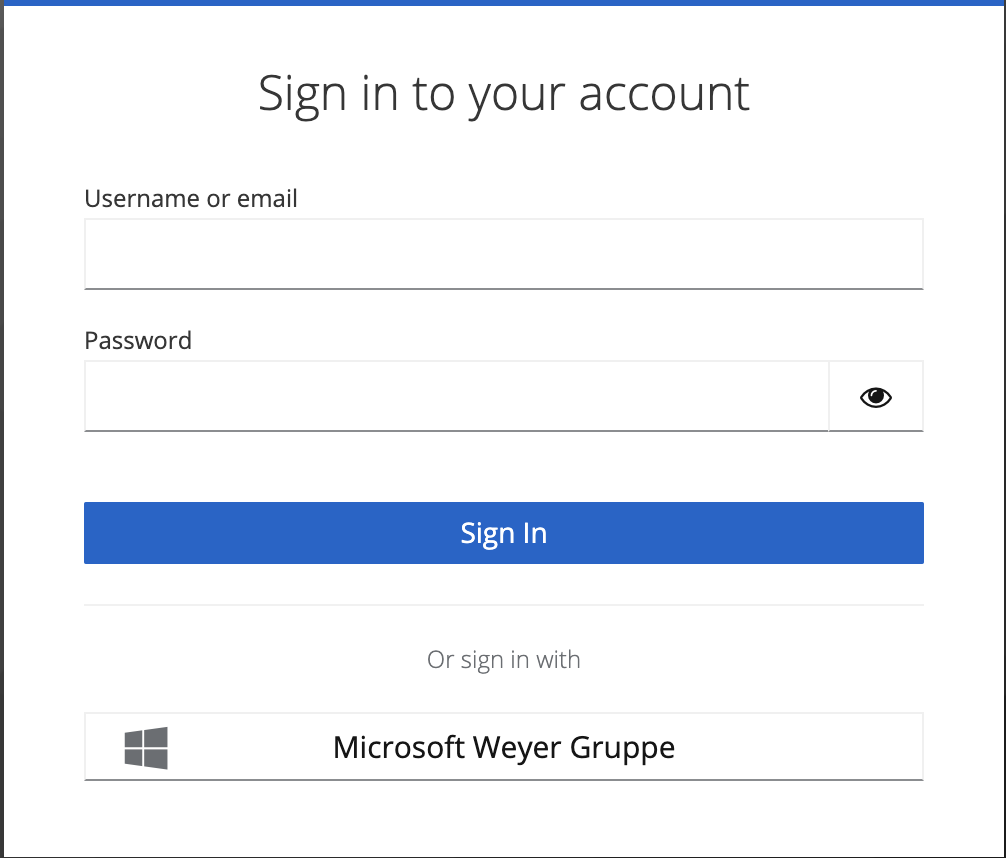
Option 1: Email & Password
Sign in with Email & Password
Go to the AITEZA login page.
Enter your email address.
Enter your password.
Click Sign In.
On first login you may be asked to update your profile (name, password strength).
Option 2: Microsoft Account (SSO)
Sign in with Microsoft
Click the Microsoft (or "Sign in with Microsoft") button.
Complete your organization’s Microsoft authentication (MFA if required).
On success you are redirected back automatically.
Resetting Your Password
If you forgot your password:
Click Forgot Password?
Enter your email.
Check your inbox for the reset link (check spam if missing).
Choose a strong new password (avoid reused credentials).
Sign in again.
If no email arrives, confirm spelling or contact an administrator to verify your account is active.
First Login Checklist
After you sign in:
Start a new chat and decide: connect datarooms for document-based Q&A, or use file attachments/web search for general queries.
If using datarooms: create one and upload 3–5 core files first before adding more.
Ask a focused question referencing a file (e.g.,
In project-plan.pdf, what are Q4 milestones?).Review source snippets to build trust in answers.
Logging Out & Session Safety
Use the profile / user menu and select Log Out when done.
Close browser tabs on shared machines.
Avoid sharing screenshots containing sensitive data from chats.
Changing the Interface Language
You can change the UI language any time: open the profile / user menu, go to Account Settings, find the Select a locale section, choose your preferred language, and save. Refresh or navigate to apply the change.
Still Stuck?
Capture the exact message and time, then contact support or your administrator with:
Email used
Approximate time
Screenshot (excluding sensitive content)
Next Step
Proceed to create your first Dataroom for document-based queries, or start a chat with file attachments for quick questions.